



Descript vs Camtasia: Which Workflow Makes Software Tutorials Easier to Maintain?
Last verified: September 16, 2026. Product interfaces, plans, export options, and AI features change frequently; confirm the current documentation before committing a production workflow.
Software tutorials decay in a very specific way. A button moves, a menu is renamed, or an onboarding sequence gains one screen. The original recording is still mostly right, yet a five-minute walkthrough now needs a correction. The practical question is not which editor has more effects. It is which workflow lets a small documentation team make a narrow change, review it, and publish a trustworthy replacement without rebuilding the whole lesson.
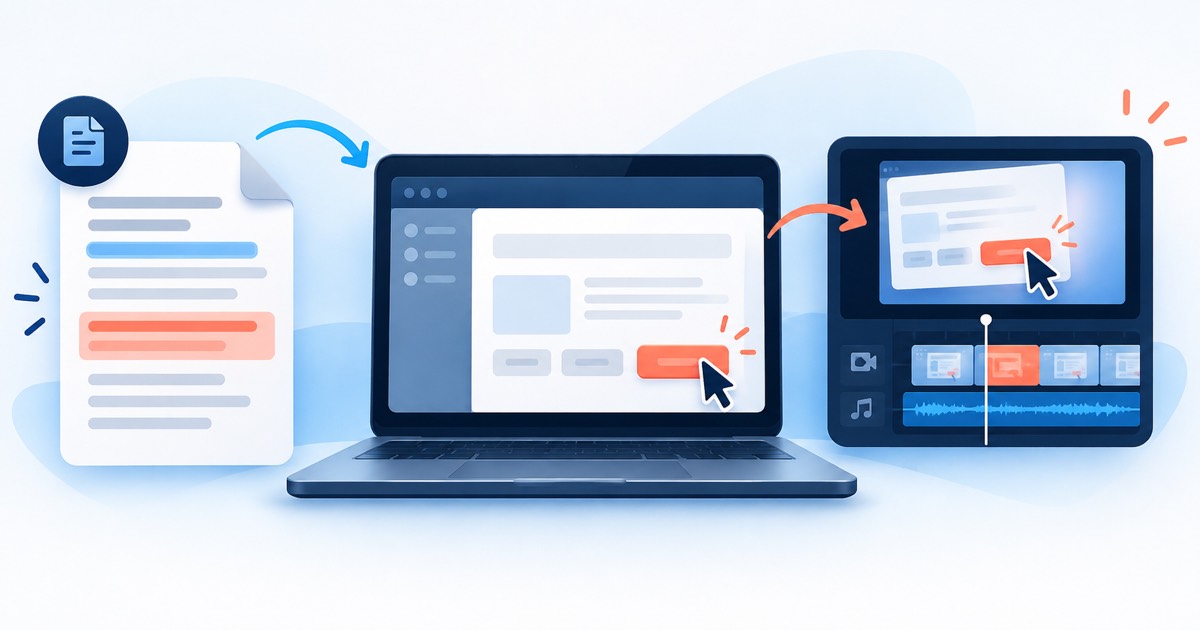
Descript and Camtasia approach that job from different starting points. Descript is most compelling when spoken explanation is the structure of the lesson: record the screen and narration, use the transcript to find the affected explanation, then tighten the replacement around the revised words. Camtasia is most compelling when the visual sequence itself is the controlled asset: preserve a recording project, replace a segment on a timeline, and use annotations, callouts, cursor treatment, and reusable visual treatment to make the new screen unmistakable.
Neither is automatically the better tool. Choose the system that matches the change you expect to make repeatedly.
The maintenance test that matters
Imagine an onboarding tutorial where a settings button has moved and the approval step now has a new confirmation screen. The team must update the spoken instruction, capture the new interaction, keep the existing tutorial’s visual style, produce captions, and hand the result to the help-center owner.
Start with a small maintenance packet: the intended viewer task, the changed UI path, the recording date, the product version or environment, the source project, the script or transcript owner, and the final approval owner. This packet matters more than an AI feature because it keeps an apparently tiny correction from becoming an unreviewable replacement.
When Descript is the better maintenance fit
Descript’s screen-recording workflow can combine a screen or webcam capture with an interactive transcript. That makes it useful when a tutorial’s value is largely its explanation: a support specialist can search for the old wording, revise the narration, flag the matching visual segment, and send a clear review link or export to the person who owns the article.
For a text-led update, begin with the transcript rather than the timeline. Locate the sentence that describes the retired control, decide whether the new instruction needs a fresh recording, and mark any surrounding sentence whose timing will change. A short correction can then be reviewed as language and as video, rather than relying on someone to spot a subtle timeline edit.
This route has limits. A transcript is not evidence that the screen is current. The editor still needs to capture the changed UI, verify that cursor movement and on-screen labels match the script, and review captions after the edit. If the lesson depends on precise diagrams, long layered callouts, or a carefully maintained visual template, a transcript-first workflow can become less convenient than a project organized around visual assets.
When Camtasia is the better maintenance fit
Camtasia is a stronger fit when the recording project is the source of truth. TechSmith documents its recorder controls for screen, camera, microphone, and system audio, while its editor workflow includes timeline editing, annotations, and caption options. That structure suits product teams that routinely maintain screenshots, zooms, callouts, cursor emphasis, and reusable recording conventions.
For the onboarding correction, keep the original project and replace only the affected clip. Re-record the changed path at the same capture dimensions, align it with the existing visual sequence, update any callout that points at the former control, then check the timing of captions and narration. A reviewer can inspect one project and see the visual treatment alongside the media sequence.
The tradeoff is operational discipline. Timeline projects are valuable only when source media, fonts, brand assets, and project files are stored predictably. If an editor receives only a finished MP4, a seemingly simple UI update can require reconstructing the visual treatment. Camtasia is therefore most useful for teams prepared to retain source projects and a small recording style guide.
Compare the workflow, not a feature checklist
| Maintenance question | Descript-oriented workflow | Camtasia-oriented workflow |
|---|---|---|
| Where does a reviewer find the outdated instruction? | Search the transcript, then inspect the matching visual segment. | Locate the scene and related annotations on the project timeline. |
| What is the main source of truth? | The spoken explanation plus linked recording. | The editable recording project and its visual layers. |
| What must be preserved? | Transcript accuracy, narration timing, and a verified replacement screen. | Source project, capture settings, annotations, captions, and media organization. |
| Best fit | Script-heavy explainers and frequent wording changes. | Visual product walkthroughs with recurring UI, callout, or template changes. |
A safer update process for either tool
- Reproduce the new UI path in a stable test environment. Record the product version and the date; never assume an old screen is still representative.
- Write the revised sentence before editing. It clarifies whether the change is only visual or changes the user instruction.
- Capture only the changed interaction first. Keep the same aspect ratio, resolution, cursor conventions, and audio environment where possible.
- Update the transcript or project, then review at normal speed and at the exact changed moment. Check that a viewer can follow the action without relying on the narrator.
- Treat captions as a separate QA item. Automated transcription is a starting point, not a final accessibility or product-accuracy review.
- Export a review copy and have someone who did not make the edit perform the path in the product. Attach the approved video and source-project location to the help-center change record.
Decision guide
Choose Descript when your tutorial team starts with scripts, makes frequent narration corrections, and benefits from having text act as the fastest route to a video change. It is especially practical when a writer, support lead, and editor need to review the same explanation without living in a visual timeline.
Choose Camtasia when your tutorials rely on repeated visual conventions and you can preserve the editable project for every release. It is the more natural operational choice when UI changes require careful replacement of screenshots, zooms, cursor emphasis, callouts, and timeline-based media.
Many teams will use both patterns: a script or transcript to control the instruction, and a retained project to control the visual asset. The important guardrail is not to publish a newly edited tutorial until the current product path, spoken guidance, on-screen labels, and captions agree. That is how a small UI correction stays a maintenance task instead of quietly creating a new support problem.
Related reading
- Descript vs Riverside for customer testimonial editing
- Best AI tools for turning support tickets into video help center content
- Best AI tools for product onboarding documentation

