



Best AI Video Tools for Creators: What to Use When You Actually Need to Make Videos Faster
Most “best AI video tools” lists are too broad. They put text-to-video tools, avatar tools, editing apps, clip generators, and video enhancers in the same bucket, then rank them as if they solve the same problem.
They do not.
If you are making videos every week, the question is not “Which AI video tool is the best?” The better question is:
What part of my video workflow is slowing me down?
Good fit: InVideo fits creators who need fast draft creation before polishing, clipping, or publishing.
If you are stuck at script-to-video production, you need a different tool than someone who already has long YouTube videos and just wants Shorts. If you need a talking presenter, an avatar tool makes sense. If your footage looks bad, a generator will not fix that; you need enhancement software.
This guide is written from that angle. It is not a ranking of hype. It is a practical map of which AI video tools fit which job.
Quick Picks
If you just want the shortlist, start here:
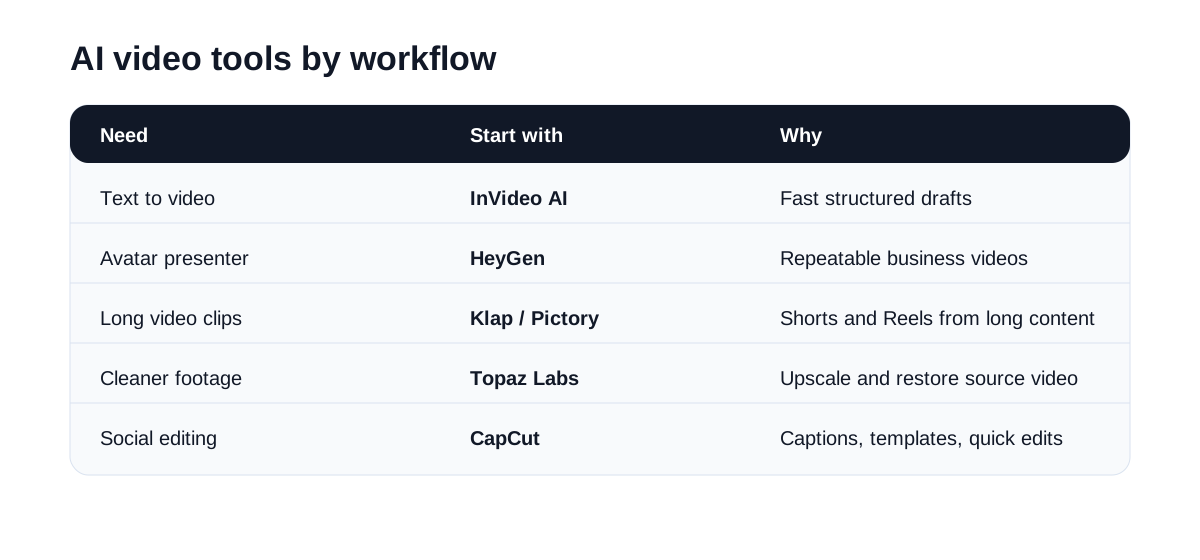
| Use case | Tool to check first | Why it fits |
|---|---|---|
| Turn scripts or ideas into videos | InVideo AI | Good for quick drafts, explainers, and marketing-style videos |
| Create AI avatar/spokesperson videos | HeyGen | Strong for business explainers, training, and multilingual presenter videos |
| Turn articles or long content into video | Pictory AI | Useful when you already have written or long-form content |
| Cut long videos into Shorts/Reels/TikToks | Klap | Built around long-video repurposing |
| Improve blurry or low-quality footage | Topaz Labs | Focused on enhancement, upscaling, and restoration |
| Edit fast social videos | CapCut | Practical for captions, templates, mobile workflows, and short-form editing |
| Generate cinematic AI scenes | Runway / Kling AI | Better for visual experiments and generative video shots |
How to Choose Without Wasting a Week
Before testing tools, write down the thing you actually need to produce.
For example:
- “I need to turn blog posts into simple videos.”
- “I need a talking avatar for product explainers.”
- “I need 10 short clips from one long YouTube video.”
- “I need to clean up old or low-quality footage.”
- “I need a fast editing workflow for TikTok and Reels.”
That single sentence matters. It keeps you from testing a cinematic AI generator when your real problem is captions and clip selection.
For this guide, I look at tools through five simple filters:
- Can it produce something usable without too much cleanup?
- Does it save real editing or production time?
- Is the workflow clear enough for a non-technical creator?
- Does it fit a specific use case, or is it trying to do everything?
- Can the output be used in a real content or business workflow?
Pricing and free plans change often, so treat this as a workflow guide, not a pricing database. Always check the official product page before you pay.
1. InVideo AI
Best for: text-to-video, quick marketing videos, YouTube-style drafts, explainers
InVideo AI is worth testing if you often start with text: a prompt, a blog post, a listicle, a product description, or a rough script.
If you want a closer look at where it fits day to day, see InVideo Review and InVideo vs Pictory.
The useful part is not that it magically makes a perfect video. It usually will not. The useful part is that it can get you from a blank page to a structured draft faster. That draft can include scenes, stock footage, voiceover direction, captions, and a basic flow.
That makes InVideo more useful for production speed than for high-end creative control.
Where it fits:
- simple explainer videos
- product or service introductions
- list-style YouTube videos
- short marketing videos
- first drafts for social content
Where it may disappoint:
- highly customized editing
- brand-heavy visual systems
- advanced motion graphics
- cinematic AI-generated scenes
Good first test: take one blog post or article and see how close InVideo gets to a publishable draft. If you still need to rebuild most of it manually, it may not be the right tool for your workflow.
2. HeyGen
Best for: AI avatar videos, talking-head explainers, training videos, multilingual presenter content
HeyGen is not the tool I would pick for fast creator-style edits. Its real value is in repeatable presenter videos.
If you need a person on screen explaining a product, teaching a process, introducing a feature, or localizing a message into different languages, avatar video starts to make sense. You can produce more versions without filming every time.
For a tighter avatar-focused evaluation, see HeyGen Review and Synthesia Review.
That is why HeyGen is more interesting for business content than casual entertainment content.
Where it fits:
- product explainers
- onboarding videos
- internal training
- sales videos
- multilingual spokesperson content
Where it may disappoint:
- highly personal creator channels
- emotional storytelling
- fast-paced social edits
- content where a real human presence is important
Good first test: write a 60-second product explainer and make one avatar version. Then ask whether the result feels good enough to send to a customer or publish on a landing page.
3. Pictory AI
Best for: article-to-video, content repurposing, long-form-to-short-form workflows
Pictory is most useful when you already have source material.
If your team has blog posts, webinars, podcasts, interviews, or long videos, the bottleneck is often repurposing. Someone has to find the useful parts, structure a shorter version, add captions, and turn it into a social-ready asset.
Pictory is built for that kind of workflow.
Where it fits:
- turning articles into videos
- summarizing long content
- creating clips from webinars or podcasts
- converting written content into social assets
- building more content from an existing content library
Where it may disappoint:
- fully original video creation
- cinematic AI visuals
- advanced manual editing
Good first test: use one existing article and one existing long video. If Pictory helps you produce usable social assets faster than your manual process, it is doing its job.
4. Klap
Best for: YouTube-to-Shorts, podcast clips, interview highlights
Klap has a narrower job than some of the other tools, and that is a good thing.
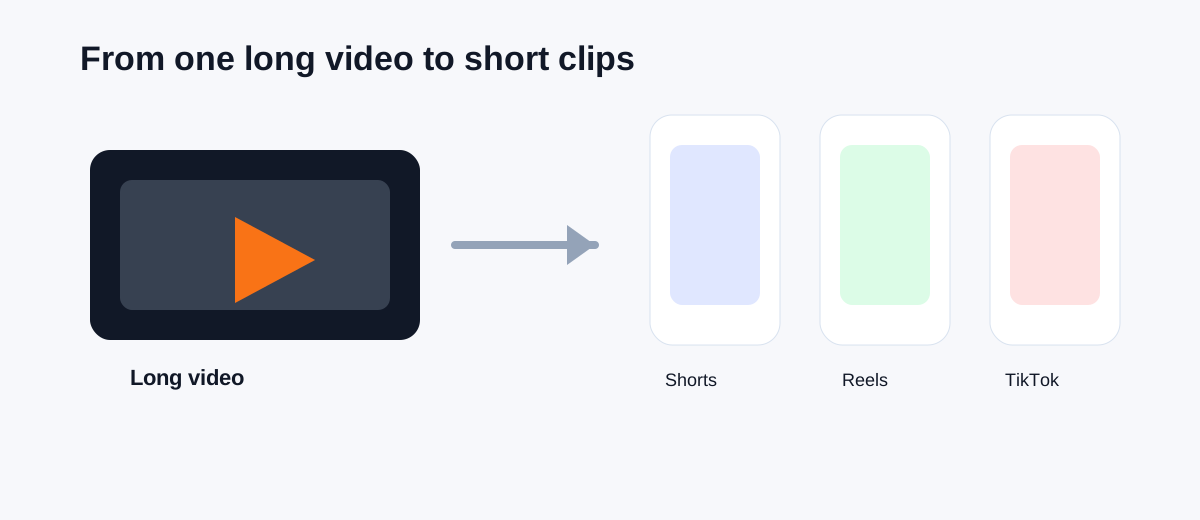
It is for people who already have long videos and want short clips. Think YouTube videos, interviews, tutorials, podcasts, webinars, or livestream recordings.
If you have to manually scan 45 minutes of footage just to find three good clips, Klap is the kind of tool worth testing.
If your shortlist is specifically about repurposing, compare Klap Review with Pictory vs Klap.
Where it fits:
- YouTube Shorts
- TikTok and Reels from long videos
- podcast highlights
- interview clips
- agency clip workflows
Where it may disappoint:
- creating videos from scratch
- avatar videos
- complex brand editing
Good first test: upload one long video and compare Klap’s selected clips against the clips you would have chosen manually. The clip selection quality matters more than the interface.
5. Topaz Labs
Best for: video enhancement, upscaling, denoising, restoring old or low-quality footage
Topaz Labs belongs in this list, but not for the same reason as InVideo or HeyGen.
It is not mainly about generating a new video. It is about improving footage you already have.
If you work with old videos, low-resolution clips, noisy footage, or material that needs to look cleaner before publishing, Topaz is much more relevant than a text-to-video tool.
If enhancement is the main bottleneck, start with Topaz Labs Review and then compare the workflow-specific angle in Topaz Video AI Review.
Where it fits:
- upscaling video
- improving old or low-quality footage
- reducing noise
- sharpening footage
- before-and-after restoration content
Where it may disappoint:
- script-to-video workflows
- social clip generation
- avatar or presenter videos
Good first test: take one low-quality clip you actually want to use and process it. Do not judge the tool on demo footage. Judge it on your own messy source material.


6. CapCut
Best for: fast short-form editing, captions, templates, TikTok-style workflows
CapCut is not only an AI video tool, but it is one of the most practical tools for people publishing short-form content every week.
For many creators, the bottleneck is not generating video. It is editing quickly, adding captions, resizing, using templates, and making something that fits TikTok, Reels, or Shorts.
That is where CapCut still matters.
Where it fits:
- short-form social videos
- auto captions
- mobile editing
- quick creator-style edits
- TikTok and Reels workflows
Where it may disappoint:
- business avatar videos
- long-form automation
- high-end AI generation
Good first test: edit the same short video in your current editor and in CapCut. If CapCut gets you to a good enough version faster, it is worth keeping in the workflow.
7. Runway and Kling AI
Best for: generative AI video scenes, visual experiments, cinematic shots
Runway and Kling AI are closer to creative generation tools. They are for producing or transforming visual scenes, not just editing existing content.
These tools can be impressive, but they are also easier to misuse. You may spend more time testing prompts, regenerating clips, and choosing outputs than you expect.
That does not make them bad. It just means they fit a different job.
Where they fit:
- AI-generated scenes
- cinematic visual tests
- concept videos
- creative ads
- social hooks that need strong visuals
Where they may disappoint:
- predictable business explainers
- simple video repurposing
- repeatable template-based production
Good first test: create one short visual scene for a specific use case, such as a product concept or ad hook. If the output needs too much cleanup, keep it as an experimental tool rather than a production tool.
My Suggested Testing Order
If you are starting from scratch, do not open seven free trials at once. You will lose track of what you are testing.
Start with the workflow that matters most:
| Your current bottleneck | Start with |
|---|---|
| I have text and need a video draft | InVideo AI |
| I have articles or long content to repurpose | Pictory AI |
| I have long videos and need Shorts | Klap |
| I need a presenter without filming | HeyGen |
| I need cleaner footage | Topaz Labs |
| I need fast short-form editing | CapCut |
| I need generative visual scenes | Runway or Kling AI |
Run one small test. Use your own material. Then ask:
- Did this save time?
- Was the output good enough to publish?
- How much manual cleanup was still needed?
- Would I use this again next week?
Those answers are more useful than feature lists.
Final Take
The AI video category is crowded, but most tools make more sense once you stop comparing them as direct competitors.
InVideo and Pictory are closer to content production and repurposing tools. HeyGen is for avatar-driven business videos. Klap is for clipping long videos. Topaz is for improving footage. CapCut is still a very practical short-form editor. Runway and Kling are better treated as creative generation tools.
The best tool is the one that removes a real bottleneck from your workflow. Start there, test with your own content, and only pay for the tools you would actually use again.
Start with InVideo if you need a practical AI video draft tool for marketing, social, or explainer videos.
Use InVideo when you want faster script-to-video drafts, social video ideas, or explainers without starting from a blank timeline.

