



Topaz Labs Review: When AI Enhancement Tools Are Worth Using
Topaz Labs is different from most AI video tools.
It is not mainly for making a video from a prompt. It is not mainly for turning a blog post into social clips. It is not a general-purpose short-form editor.
Topaz Labs is strongest when you already have footage or images and want them to look cleaner, sharper, larger, or more usable.
That makes it especially interesting for creators, editors, photographers, agencies, archivists, and anyone working with imperfect source material.
Short Answer
Topaz Labs is worth testing if you need:
- video upscaling
- blurry footage improvement
- noise reduction
- sharper photos
- image upscaling
- face recovery or photo restoration
- cleaner source files before editing or publishing
It is probably not the first tool to test if you need:
- AI avatar videos
- text-to-video generation
- long-video clipping
- social captions and templates
- fast creator-style editing
The question is not "Can Topaz make videos for me?" The better question is "Can Topaz improve the footage or images I already have?"
What Topaz Labs Is Best For
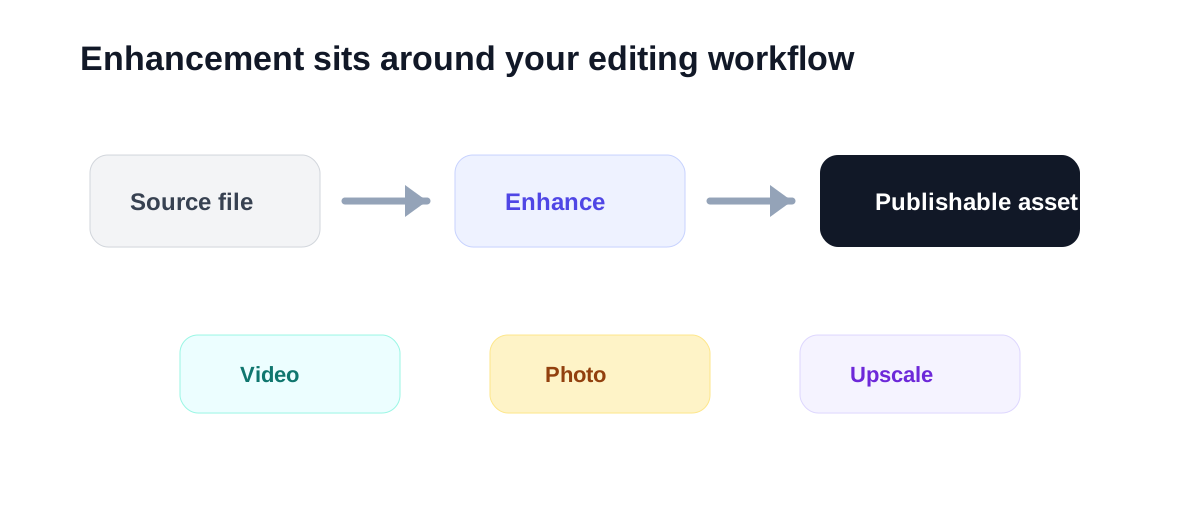
Topaz Labs is best understood as an enhancement layer.
Its product lineup currently includes tools and plans around Topaz Video, Topaz Photo, Topaz Gigapixel, Topaz Image, and other AI-powered image and video workflows. The site highlights use cases such as denoise, sharpen, upscale, photo restoration, face enhancement, background removal, colorization, stabilization, SDR to HDR, and multiple video models.
That makes Topaz useful when the source material is close to usable but not quite there.
For example:
- an old video looks too soft
- a clip needs to be upscaled before editing
- a photo is noisy or blurry
- faces need recovery
- product images need cleaner output
- archival content needs restoration
This is a different value proposition from tools like InVideo, Pictory, Klap, or HeyGen.
If you want the narrower video-first angle, see Topaz Video AI Review.
Topaz Labs at a Glance
| Use case | Fit | Why |
|---|---|---|
| Video enhancement | Strong | Topaz Video focuses on improving existing footage |
| Photo enhancement | Strong | Topaz Photo covers sharpening, denoise, upscaling, and recovery workflows |
| Image upscaling | Strong | Gigapixel-style workflows are a natural fit |
| Old media restoration | Good | Useful when source material needs cleanup |
| Text-to-video generation | Weak | This is not Topaz's main job |
| Short-form social editing | Weak | Tools like CapCut, Klap, or Pictory are more direct |
Where Topaz Feels Useful
Topaz Labs is most useful when quality is the bottleneck.
Many AI video tools focus on production speed. Topaz is more about improving the source before or after production.
That matters in workflows like:
- restoring older clips for YouTube
- improving low-resolution product footage
- cleaning noisy video before editing
- upscaling images for websites or ads
- preparing visuals for portfolio or client delivery
- improving still frames pulled from video
If your content already exists but looks too rough to publish, Topaz is exactly the kind of tool worth testing.
Where Topaz May Disappoint
Topaz is not a magic "make content for me" tool.
If you need to create a marketing video from a script, InVideo is a more direct starting point. If you need avatar-led explainers, HeyGen is closer. If you need to turn a podcast into Shorts, Klap is built around that job.
Topaz also requires judgment. Enhancement can improve a file, but it can also make footage look overprocessed if pushed too far.
You still need to check:
- skin texture
- edge artifacts
- motion smoothness
- sharpening halos
- face recovery quality
- whether the improved file still looks natural
For professional use, the final check matters as much as the model.
Best Audiences for Topaz Labs
Topaz Labs fits users who already work with visual source material.
Good-fit audiences include:
- video editors
- photographers
- YouTube creators
- agencies
- product marketers
- restoration and archive projects
- real estate and travel content creators
- ecommerce teams improving image assets
Weaker-fit audiences include:
- creators starting only from text prompts
- teams that mainly need social templates
- podcasters who only need clip selection
- businesses that need avatar presenters
Suggested Test Workflow
Use your own worst acceptable file. Do not test with a perfect sample.
For video:
- Pick one clip that is useful but visually weak.
- Run one conservative enhancement or upscale.
- Compare the original and output at full size.
- Check faces, edges, motion, and noise.
- Decide whether the improvement is worth the processing time.
For images:
- Pick one noisy, blurry, or low-resolution image.
- Test sharpening, denoise, or upscale.
- Compare detail without zooming too far in.
- Check whether the image still looks natural.
- Decide whether it improves the final publishing asset.
The goal is not to create the most dramatic before-and-after. The goal is to see whether Topaz improves files you actually need to use.
Topaz Labs vs Other AI Video Tools
Topaz should not be compared as a direct rival to most AI video generators.
| Tool | Best workflow |
|---|---|
| Topaz Labs | Improve existing video and image quality |
| HeyGen | AI avatar presenter videos |
| InVideo | Text or script to video draft |
| Pictory | Articles and long content to video assets |
| Klap | Long video to short clips |
| CapCut | Fast short-form editing |
This is why Topaz can be valuable even if you already use other tools.
It can sit before editing, after editing, or as a restoration step in the middle of the workflow.
Final Recommendation
Topaz Labs is best for improving assets, not creating a full content workflow from scratch.
It makes sense when the problem is visual quality: blurry clips, noisy photos, low-resolution files, old footage, or images that need cleaner output before publishing.
It makes less sense if your main bottleneck is scripting, clipping, avatar generation, or social editing.
The best first test is simple: take one imperfect file that you actually care about, run a conservative enhancement, and decide whether the output is good enough to save real editing time.
