



Topaz Video AI Review: When AI Enhancement Helps More Than Another Editor
Topaz Video AI solves a different problem than most AI video tools people compare together.
It is not mainly about writing a prompt, generating scenes, or turning a script into a finished video draft. Its value shows up when your source footage is already useful, but the quality is holding it back.
That makes it relevant for creators working with archive footage, old recordings, compressed exports, low-light clips, screen captures, and videos that need to look cleaner before they are reused.
If your bottleneck is video quality, Topaz Video AI is worth testing. If your bottleneck is ideation, editing speed, or short-form clipping, it is probably the wrong first tool.
Short Answer
Topaz Video AI is a strong fit if you need:
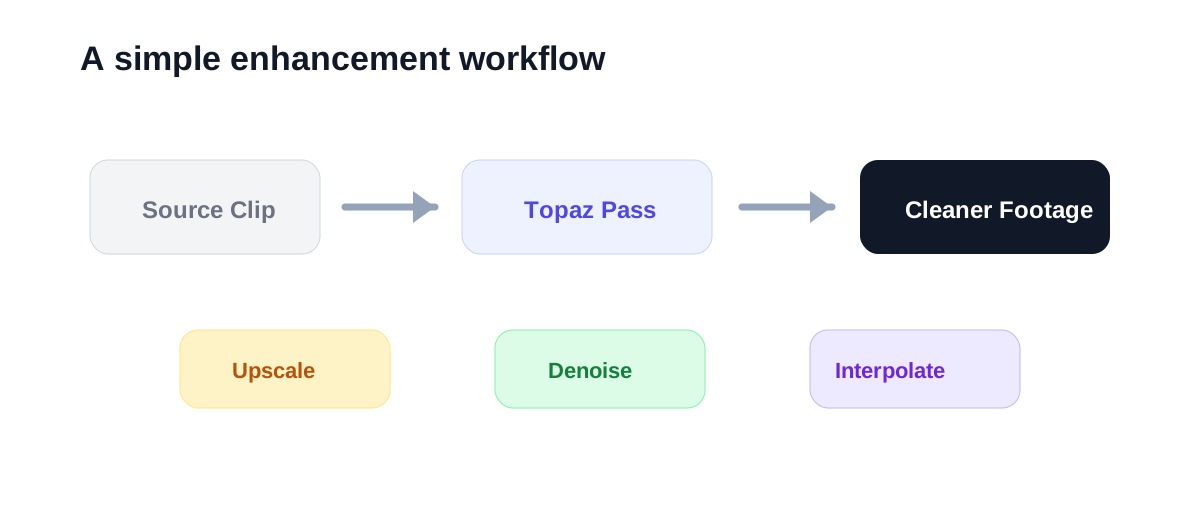
- video upscaling for older or low-resolution footage
- denoising and sharpening on clips that are usable but messy
- frame interpolation for smoother motion
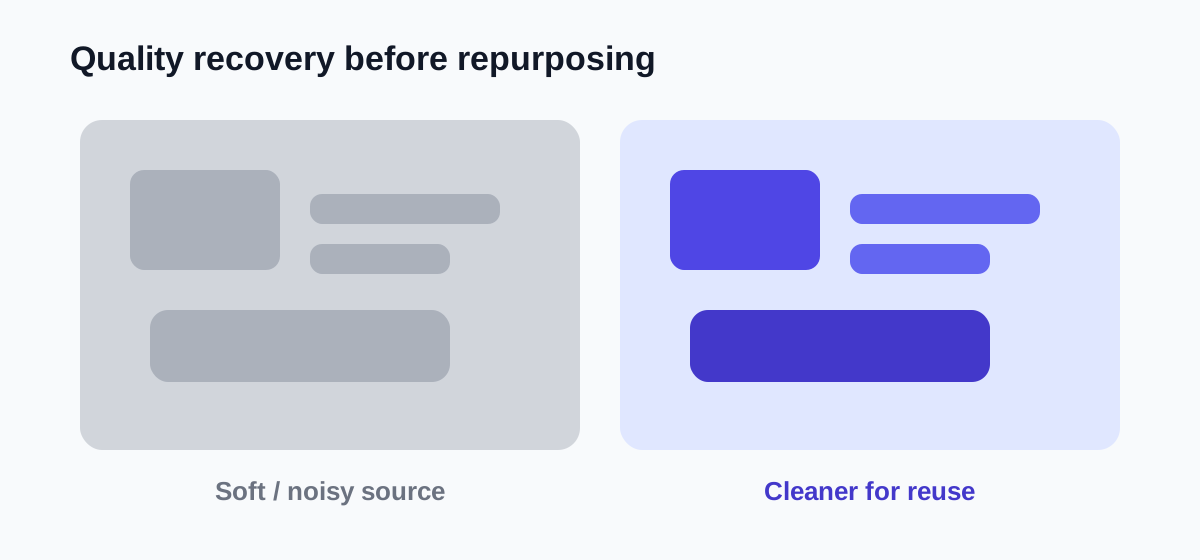
- restoration before republishing or repurposing footage
- cleaner source material before editing elsewhere
It is a weaker fit if you mainly need:
- script-to-video generation
- social clip automation
- timeline editing
- avatar presenter videos
- fast publish-from-prompt workflows
The simplest way to judge it is not by demo reels. Run one real clip through it and ask whether the quality improvement is large enough to justify the render time.
What Topaz Video AI Is Best For
Topaz Video AI is best treated as a finishing or restoration layer inside a wider workflow.
That could mean:
- improving old YouTube footage before cutting new Shorts
- restoring customer testimonial videos before using them again
- cleaning up webinar recordings for republishing
- sharpening exported clips that were compressed too aggressively
- enhancing footage before a final edit in another tool
This is why Topaz fits a different place in the stack than tools like InVideo vs Pictory or HeyGen Review. Those tools help create or structure videos. Topaz helps improve source footage you already have.
Topaz Video AI at a Glance
| Use case | Fit | Why |
|---|---|---|
| Old or low-resolution footage | Strong | Upscaling and restoration are the core value |
| Noisy clips | Strong | Denoising can help salvage footage that feels too rough to publish |
| Motion smoothing | Good | Frame interpolation can improve playback in the right cases |
| Repurposing archive content | Good | Better source quality makes later editing more usable |
| Script-to-video creation | Weak | Not the job Topaz is built for |
| Short-form clipping | Weak | Tools like Pictory or Klap are more direct |
Where Topaz Feels Useful
Topaz Video AI becomes easier to justify when you already own footage with content value.
For example:
- a webinar with useful teaching but soft image quality
- an older product demo recorded at low resolution
- a customer clip with visible noise
- a tutorial export that looks too compressed after multiple edits
- archive material you want to reuse in a new campaign
In those situations, a quality-improvement pass can be more valuable than another round of editing features.
That is the practical case for Topaz: not making bad footage perfect, but making borderline footage usable enough to keep.
Where Topaz May Disappoint
Topaz Video AI is not a magic recovery tool.
If the source is extremely broken, the result can still look artificial. It can also add processing time that feels heavy compared with browser-based AI tools. That matters if your team values speed over quality gains.
It can also be the wrong investment if your content problem is upstream. If you have weak scripts, poor storytelling, or no clear clip strategy, sharpening footage will not fix that.
Use Topaz when the quality problem is real and specific. Do not use it as a substitute for better source production.
Best Audiences for Topaz Video AI
Topaz is easier to justify for users who already manage footage libraries or publish frequently enough that restoration has repeat value.
Good-fit audiences include:
- YouTube creators reusing older footage
- agencies cleaning client video assets
- marketers republishing webinar and demo content
- educators updating course recordings
- documentary or archive-focused editors
- small teams working with inconsistent source quality
Weaker-fit audiences include:
- creators who mostly need fast social edits
- teams that publish only from brand-new polished footage
- users looking for AI-generated scenes
- businesses that need presenter avatars more than restored video
Suggested Test Workflow
Do not start with a showcase clip. Start with a clip you would actually publish if it looked better.
Use this simple test:
- Pick one real clip with a clear problem: low resolution, noise, compression, or rough motion.
- Process it once with conservative settings.
- Compare the result side by side with the original at full size.
- Check whether faces, text, edges, and motion look genuinely better rather than just sharper.
- Measure the render time and decide whether the improvement is worth that extra production step.
- If it passes, test one more clip from a different source type before committing to a workflow.
That tells you more than any product gallery.
Topaz Video AI vs Other AI Video Tools
Topaz should be compared by job, not by raw feature count.
| Tool | Best workflow |
|---|---|
| Topaz Video AI | Improve or restore footage you already have |
| InVideo | Turn text or scripts into video drafts |
| Pictory | Repurpose articles, webinars, and long content |
| Klap | Turn long videos into short clips |
| HeyGen | Create avatar-led presenter videos |
| CapCut | Edit short-form social videos quickly |
That is also why Topaz belongs on a broader Best AI Video Tools for Creators list, but usually not at the top for beginners. It is powerful when footage quality is the bottleneck, and secondary when the bottleneck is production flow.
Final Recommendation
Topaz Video AI is worth testing when you already have footage that matters and quality is the thing stopping you from reusing or publishing it confidently.
It makes the most sense as a specialized enhancement layer, not as your main video creation platform.
If you mostly need new videos, social clips, or presenter content, start with creation or repurposing tools first. If you already have valuable footage that looks weak, Topaz can be one of the more practical AI upgrades in the stack.
The best first test is simple: take one clip you would otherwise leave on the shelf and see whether Topaz makes it usable enough to publish.
