



Adobe Express AI Clip Maker Review: Is It Reliable for Turning Demos Into Social Clips?
Adobe Express AI Clip Maker Review: Is It Reliable for Turning Demos Into Social Clips?
Turning a webinar, tutorial, or product demo into short social videos sounds simple until context disappears. A useful clip must start at the right moment, preserve the claim that follows, fit a vertical canvas, and still look like the brand that published the original recording. Adobe Express Clip Maker is designed to shorten that first-pass work: upload a longer video, let the service identify segments, then refine the candidates in Adobe Express.
This review focuses on workflow reliability rather than the number of clips generated. The practical question is whether a marketing or product team can move from a long recording to publishable short-form assets with less review time and without turning accurate source material into misleading fragments.
Quick verdict
Adobe Express Clip Maker is most useful when the source has clear spoken sections, such as a narrated demo, webinar, interview, or tutorial. It can reduce the time spent finding candidate moments, and the surrounding Express editor is convenient for captions, resizing, branding, and light visual cleanup.
It is not a hands-off publishing system. Teams still need to verify where each clip begins and ends, correct captions, check product claims, and decide whether the crop keeps the important on-screen area visible. It is less compelling for silent footage, highly visual walkthroughs with little narration, multilingual work outside current support, or editors who already have a mature clipping pipeline.
What Clip Maker actually does
Clip Maker sits at the intake stage of a repurposing workflow. You provide a supported video and the tool analyzes its spoken content to propose shorter segments. Those candidates can then move into Adobe Express for editing rather than remaining isolated exports.
That integration is the main reason to consider it. A raw AI-selected excerpt is rarely ready for a campaign. It may need a different aspect ratio, caption corrections, a branded opening, a product screenshot, a closing call to action, or tighter timing. Keeping discovery and finishing close together removes some handoffs.
Adobe's published requirements should be treated as an operating boundary, not a footnote. At the time of review, its documentation describes desktop use, English-language input, supported video duration and file limits. These conditions can change, so verify the current official requirements before planning a large batch.
A realistic test workflow
Use three different source types before deciding whether the tool fits your team:
- A webinar with a clear presenter and distinct teaching sections.
- A product demo where the screen recording carries essential visual context.
- A tutorial with warnings, prerequisites, or conditions that must remain attached to the recommendation.
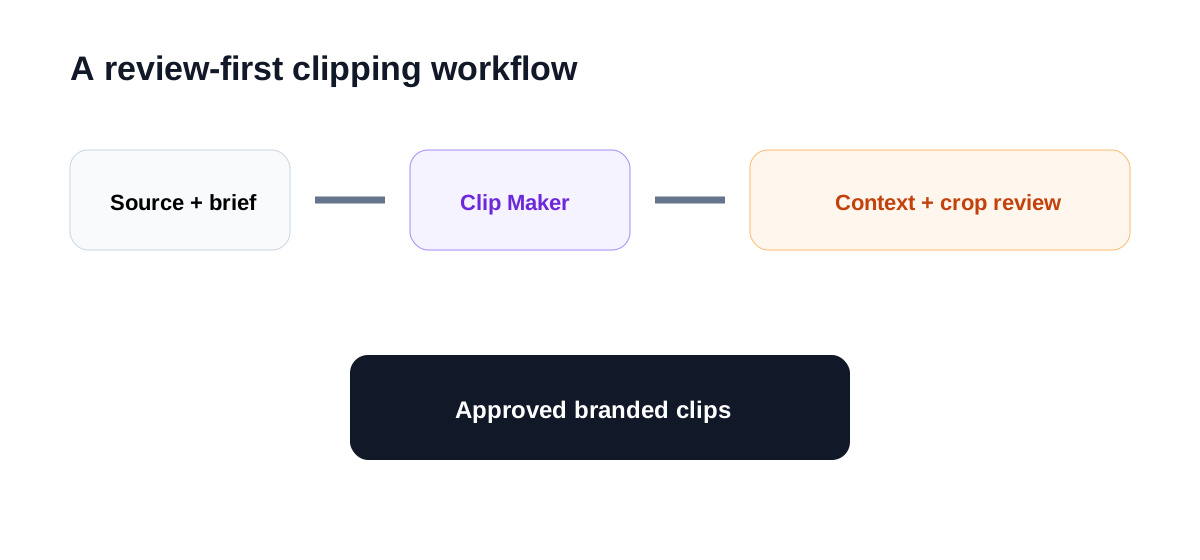
For each source, create a short brief before uploading. Record the intended audience, the claims that cannot be separated from their qualifications, the required brand treatment, and the target channels. That brief gives reviewers an objective standard instead of judging clips only by whether they sound energetic.
Clip discovery quality
The tool's strongest value is reducing search time. In a well-structured conversation, topic changes and concise explanations provide natural boundaries. The generated set can help an editor find moments that would otherwise require scrubbing through the full timeline.
The risk is that a segment can be locally understandable but globally incomplete. A speaker may say “this works automatically” and explain the limitation ten seconds later. A clipping model may prefer the confident sentence while excluding the condition. Product marketers should therefore review every candidate against the source transcript and surrounding footage.
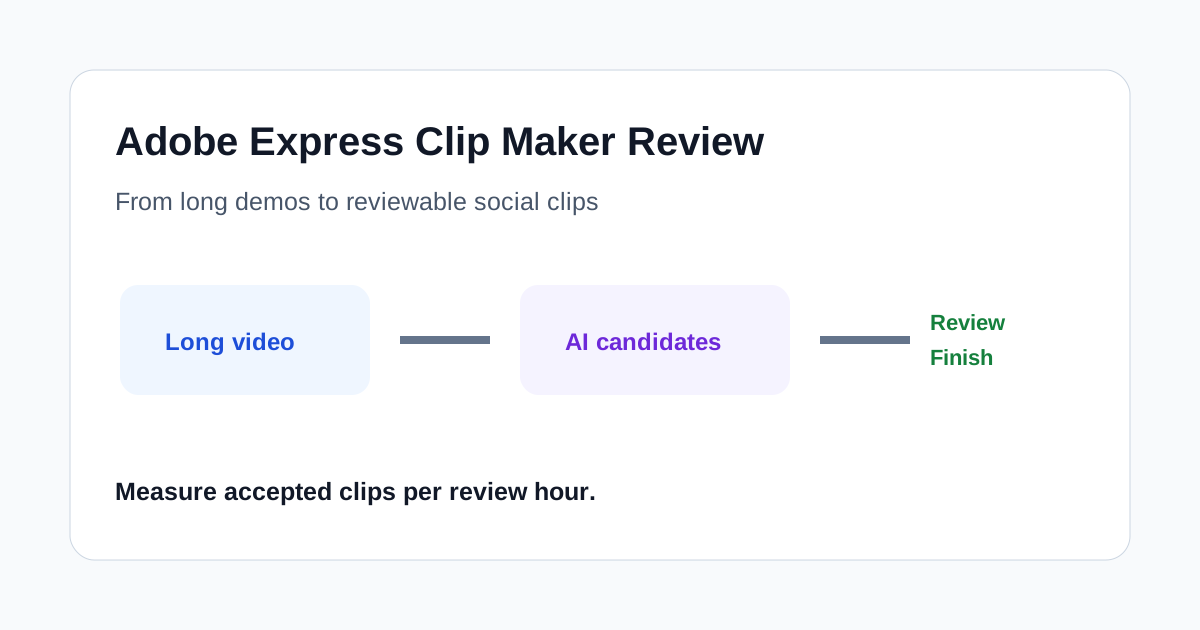
A practical metric is accepted clips per review hour. Counting generated candidates rewards volume, while accepted clips measures whether the suggestions actually reduce work. Also track the percentage rejected for missing context, weak opening, poor visual crop, or duplicate meaning.
Captions and transcript review
Captions help social videos work without sound, but automatic text needs human review. Product names, acronyms, speaker names, technical terms, and numbers are common failure points. A single incorrect version number or quantity can change the meaning of a demo.
Review captions while listening to the source, not by reading them alone. Check punctuation where it affects meaning, remove filler only when the sentence still sounds natural, and keep terminology consistent with the product's interface. If the clip will be localized later, approve the source-language transcript first so translation does not amplify an early error.
Reframing and visual context
Vertical output can work well for presenter-led recordings, but screen-heavy demos require more care. A crop may follow the speaker while hiding the interface control being discussed. Before approval, watch the clip at the size and orientation used by the destination channel.
For product demonstrations, consider a composed layout with the presenter, the relevant screen area, and readable captions rather than a simple center crop. Adobe Express can help finish that layout, but a reviewer still needs to decide what the viewer must see at each moment.
Brand finishing in Adobe Express
The surrounding editor makes Clip Maker more useful for teams already working in Adobe Express. Brand colors, fonts, logos, reusable layouts, transitions, and end cards can be added after the candidate is selected. This is especially helpful for small marketing teams that want one approachable workspace instead of moving every clip into a full desktop editor.
Consistency still requires a template and an approval rule. Define safe caption zones, logo placement, minimum text size, opening-hook treatment, and the closing call to action. Without those constraints, faster generation can produce a larger collection of inconsistent assets.
Where the workflow saves time
The clearest savings come from first-pass discovery and simple finishing. A content marketer can review proposed moments, reject weak ones, correct text, apply a standard layout, and route a smaller set for approval. This can be faster than asking a specialist editor to find every possible excerpt from scratch.
Savings shrink when every candidate needs substantial narrative repair, motion design, audio cleanup, or manual tracking of screen elements. In those cases, Clip Maker can still provide a shortlist, but it does not replace a capable timeline editor.
Important limitations
- Language and device support may exclude some teams or recordings.
- File duration, size, and format requirements need to be checked before batch work.
- AI-selected boundaries can remove context or qualifications.
- Automatic captions can misread names, numbers, and technical language.
- Vertical reframing may hide important interface details.
- Usage rights remain the publisher's responsibility; uploading a recording does not create permission to reuse every visual, voice, or music track it contains.
Who should use it
Clip Maker is a good candidate for small marketing teams, webinar producers, educators, and product marketers who already use Adobe Express and publish recurring talking-head or narrated material. It is particularly useful when the team lacks time for manual discovery but can maintain a disciplined review step.
It is a weaker fit for advanced editors who need detailed timeline control, teams producing mostly silent visual content, or organizations that cannot use cloud analysis for sensitive recordings. Those users may need a local, enterprise-governed, or full-editing workflow instead.
A safe approval checklist
Before publishing any generated clip, confirm:
- The opening makes sense without the original introduction.
- The ending includes any condition required to understand the claim.
- Captions match the spoken words, product terminology, and numbers.
- The crop keeps the relevant speaker or interface element visible.
- Brand assets are current and readable on a phone.
- Music, footage, voices, and screenshots are cleared for the intended channel.
- The call to action matches the content and destination page.
- A human owner has approved the final export.
Final recommendation
Adobe Express Clip Maker is best viewed as a discovery assistant connected to a lightweight finishing environment. For clear English-language webinars, tutorials, and demos, it can shorten the distance between a long recording and a useful social draft. Its value depends on how many candidates survive review, not how quickly it fills a gallery.
Run a representative three-video pilot, track accepted clips per review hour, and document the rejection reasons. If the team consistently saves discovery time while preserving context and brand quality, Clip Maker can become a practical part of the repurposing pipeline. If reviewers spend most of their time repairing boundaries and crops, keep it as an occasional idea generator rather than the center of production.

