



Best AI Video Tools for Beginners Who Want a Usable First Video, Not More Setup
Best AI Video Tools for Beginners Who Want a Usable First Video, Not More Setup
AI video tools are often sold as if the difficult part is pressing Generate. For a beginner, the difficult part is choosing a workflow that matches what already exists: a finished script, a folder of clips, a recorded explanation, or a need for an on-screen presenter.
The easiest tool is not the one with the longest feature list. It is the one that gives you a reviewable first draft without forcing you to understand keyframes, codecs, motion curves, or a complicated timeline before you can fix a sentence.
This guide compares five practical starting points: InVideo for assembling a full draft from a prompt or script, Canva for template-led visual editing, Descript for editing recordings through text, Fliki for narrated script-to-video production, and HeyGen for presenter-led videos. The goal is a usable first video, not an impressive demo that becomes difficult to revise.
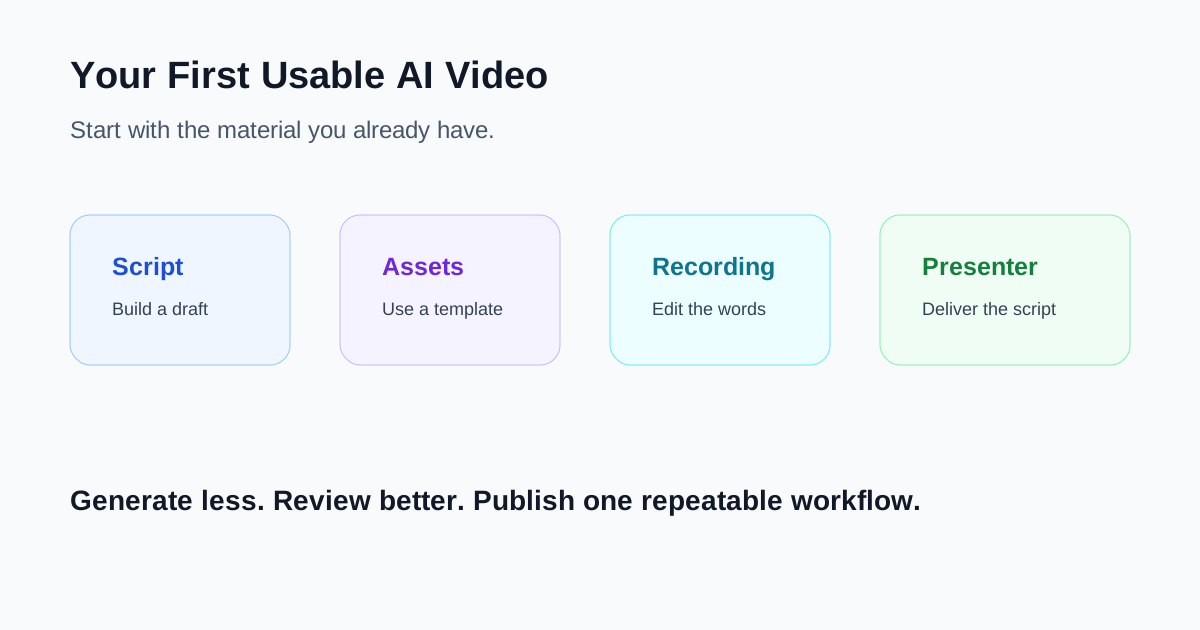
Start With the Material You Already Have
Before choosing a tool, write down which of these is closest to your situation:
- You have an idea or finished script but no footage. Start with a draft generator such as InVideo or a narrated scene builder such as Fliki.
- You have photos, brand assets, and a familiar layout style. Start with Canva so the result remains visually editable.
- You already recorded yourself, an interview, or a screen walkthrough. Start with Descript and edit the recording through its transcript.
- You need a person delivering a controlled script without filming. Start with HeyGen and use an avatar-led workflow.
- You have rough clips but do not know how to assemble them. Canva's Magic Video can create a first cut, while Descript is more useful when spoken content is the source of truth.
This decision removes most of the confusion. A text-to-video generator and a transcript editor may both say “AI video,” but they solve different first-day problems.
Quick Recommendation Table
| Your starting point | Best first tool to try | Why it is approachable | What still needs review |
|---|---|---|---|
| Idea or script, no footage | InVideo | Builds an end-to-end mixed-media draft | Claims, media relevance, pronunciation, captions |
| Brand assets or rough clips | Canva | Familiar templates and direct visual controls | Timing, hierarchy, mobile readability, licenses |
| Recorded speech or screen capture | Descript | Editing text changes the underlying media | Transcript accuracy, cut boundaries, visual layers |
| Narrated faceless video | Fliki | Turns text into scenes, voice, visuals, captions, and music | Voice choice, scene matching, factual visuals |
| Presenter-led explanation | HeyGen | Script-first avatar workflow without filming | Delivery, pronunciation, gestures, disclosure needs |
1. InVideo: Best When You Need a Complete First Draft
InVideo is the clearest starting point when you have a topic or script and want the system to assemble narration, scenes, media, music, and captions into one draft. Its current official script guide explains that you can use your own script, set media, music, subtitle, and language preferences, and then generate through either a conversational Agent flow or an Autopilot-style direct flow.
That makes it useful for a beginner who is staring at an empty project and does not yet know how many scenes the video needs. The first output can establish pacing and structure even when it is not ready to publish.
Choose InVideo when:
- You want a complete explainer or social draft from a written brief.
- Stock media and generated visuals are acceptable starting material.
- You would rather replace scenes than assemble every scene manually.
- You can review every factual statement and visual choice before export.
Do not mistake completeness for accuracy. A polished draft can still use generic or misleading media. Check every product screen, statistic, logo, caption, and spoken name. Our InVideo review explains the broader drafting workflow.
2. Canva: Best When You Want Familiar Visual Control
Canva is often easier for a beginner who already understands slides, templates, and drag-and-drop design. Canva's current video feature overview describes Magic Video assembling uploaded footage into a social-ready edit, along with editable captions, animation, background removal, audio tools, templates, and manual trim and split controls.
The advantage is not that Canva removes every editing decision. It keeps many decisions visible. You can select text, replace an image, change a color, shorten a clip, or apply a known layout without learning a professional editing interface first.
Choose Canva when:
- You already have a logo, colors, product screenshots, or photos.
- The video resembles a presentation, announcement, carousel, or short promo.
- Text layout and brand consistency matter more than cinematic generation.
- You want to reuse a template for several aspect ratios or campaigns.
The main beginner risk is over-design. Templates make it easy to add too much text, too many transitions, and too many visual styles. Keep one message per scene, preview on a phone, and verify that the viewer can read every claim before the scene changes.
3. Descript: Best When You Already Recorded Something
Descript is the most natural option when your source is spoken. Its official edit-like-a-doc documentation says that adding media to the script transcribes the speech and links the words to the underlying audio or video. Delete or move text, and the corresponding media changes too. A timeline remains available for detailed fixes, but a beginner can complete much of the first edit in a document-like view.
Choose Descript when:
- You recorded a tutorial, interview, podcast, webcam explanation, or screen demo.
- Removing repeated sentences and rearranging ideas is the main job.
- Captions and transcript review are more important than generated scenes.
- You want non-destructive editing and the ability to restore removed media.
Transcription is not perfect. Official guidance notes that accuracy depends on recording quality, accents, background noise, mic placement, and overlapping speech. Review names, technical terms, numbers, and sentence boundaries. A text deletion can create an unnatural audio cut even when the transcript looks correct. See our Descript review for a fuller assessment.
4. Fliki: Best for a Narrated Video From Written Material
Fliki is a practical option when you want a script, article, blog URL, presentation, or idea turned into a narrated scene sequence. Its official text-to-video page describes workflows that combine script segmentation, AI voiceover, paired visuals, captions, music, and multiple output ratios in one workspace.
For a beginner, this reduces the number of separate decisions required before a first export. It is particularly suitable for faceless explainers, short educational videos, and narrated lists where the spoken script carries the story.
Choose Fliki when:
- Your strongest asset is written text rather than recorded footage.
- You need voiceover and captions but do not want to record yourself.
- A scene-by-scene structure is easier to review than a complex timeline.
- You are willing to replace visuals that match keywords but not meaning.
Review the license and plan terms at purchase time rather than relying on an old price table. Also listen to the entire narration. A voice can sound convincing in a preview but mishandle acronyms, brand names, pauses, or emotional emphasis across a full video. Our InVideo vs Fliki comparison helps distinguish full-draft and voice-led workflows.
5. HeyGen: Best When a Presenter Is the Format
HeyGen is a simpler choice when the video should look like a person delivering a script. Its current Quick Avatar help guide describes a workflow of choosing an avatar, adding a script, selecting voice and motion settings, and generating. The broader AI Studio adds scene, script, avatar, and voice controls without requiring a traditional editing timeline.
Choose HeyGen when:
- Training, onboarding, internal updates, or short explanations need a presenter.
- You have an approved script and do not need original location footage.
- Consistent delivery matters more than spontaneous performance.
- You can review pronunciation, gesture timing, and whether avatar use should be disclosed.
An avatar does not solve weak writing. Shorten long sentences, write for speech, and give the presenter room to pause. Review the whole export for pronunciation and visual continuity. Our HeyGen review covers the presenter workflow in more detail.
A Beginner Workflow That Prevents Expensive Restarts
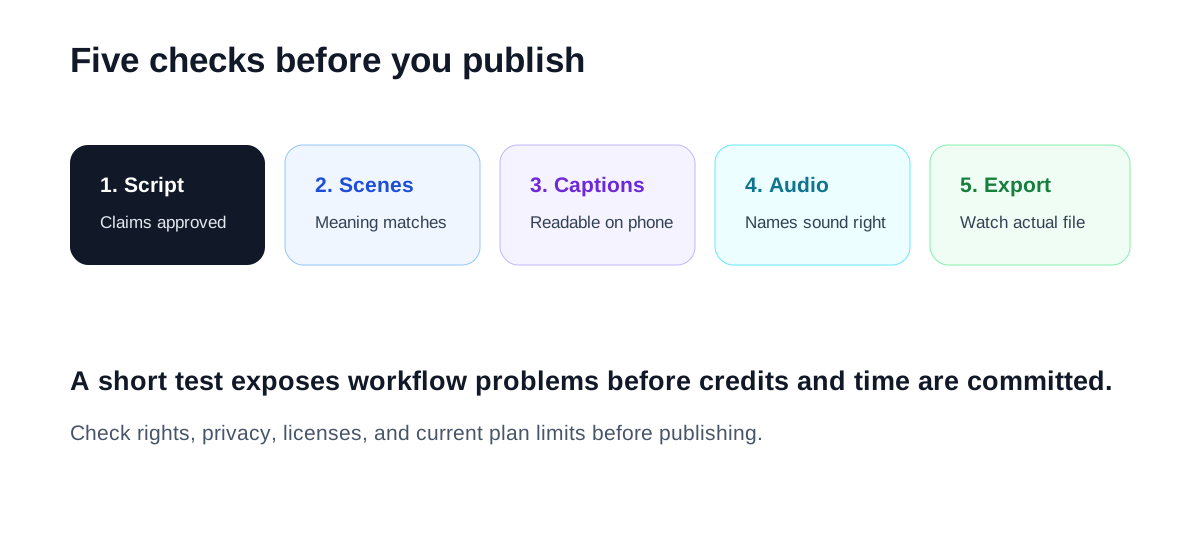
Step 1: Write a one-sentence outcome
Use a concrete sentence such as: “After watching, a new customer can complete the account setup.” This gives you a reason to reject attractive scenes that do not help the viewer.
Step 2: Make a 30–60 second test
Do not begin with a ten-minute project. Generate or edit one short section that includes an opening, one important claim, and a call to action. This reveals whether the workflow is understandable before you spend credits or hours.
Step 3: Review the script before the visuals
Read every sentence aloud. Remove repetition and unsupported promises. Correct the script first; otherwise you will repeatedly regenerate visuals and narration around copy that was never ready.
Step 4: Inspect every scene with sound off
Check captions, text size, logos, screenshots, faces, hands, product interfaces, and scene relevance. If a silent viewer cannot understand the structure, the edit probably relies too heavily on narration.
Step 5: Listen without watching
Check pronunciation, pauses, music level, abrupt cuts, and whether the voice sounds appropriate for the audience. Visual polish can hide audio problems during editing.
Step 6: Export once and watch the actual file
Do not approve only from the editor preview. Watch the exported file on a phone and a computer. Confirm aspect ratio, caption edges, resolution, audio sync, and the final call to action.
Common Beginner Mistakes
Choosing by the most dramatic demo
Product demos are designed to show peak output, not the amount of review required. Choose by your repeatable source material and correction workflow.
Generating before the script is approved
Every script change can affect narration, captions, scene timing, and visual selection. Approve the message before spending time polishing the edit.
Accepting automatic media literally
Automatically selected footage may match a word while contradicting the actual product or process. Replace any scene that could mislead a viewer.
Publishing without rights and privacy checks
Confirm the current plan's commercial-use terms, stock license, voice or avatar permissions, uploaded-media rights, and privacy rules. Do not upload customer recordings or confidential product screens without authorization.
Trying to learn five tools at once
Pick one based on your starting material, complete one small project, and record where the workflow became difficult. Only compare a second tool against that real problem.
Which Tool Should You Try First?
- Pick InVideo if you need the system to assemble a complete draft from an idea or script.
- Pick Canva if you want template-led video with familiar visual editing and brand assets.
- Pick Descript if the video already exists as a recording and the main job is cutting spoken content.
- Pick Fliki if you want written material turned into a narrated, captioned scene sequence.
- Pick HeyGen if the approved format is a presenter delivering a controlled script.
The best first tool is the one that makes mistakes easy to see and correct. A beginner does not need the most advanced generator. You need a small, reviewable workflow that produces one video you can confidently publish—and that you can repeat next week without starting over.
Related Reading
- InVideo Review: Is It a Good AI Video Tool for Fast Draft Creation?
- Descript Review: Is It Still the Easiest Way to Edit Video From a Transcript?
- InVideo vs Fliki: Which One Turns Scripts Into Usable Videos Faster?
- HeyGen Review: When AI Avatar Videos Actually Make Sense
- Best AI Video Tools for Creators: What to Use When You Actually Need to Make Videos Faster
*Product capabilities change frequently. This guide was checked against current official InVideo, Canva, Descript, Fliki, and HeyGen documentation on July 31, 2026. Confirm current plan limits, licensing, privacy terms, and export conditions before purchase or publication.*
